How AI works in Quote Hub
Agents prepare the work; a person approves anything that sends or changes something.
Quote Hub's AI agents do the preparation: reading enquiries, checking rules, shortlisting suppliers, comparing bids, drafting emails. They do not send anything or change an enquiry on their own. Each recommended action becomes a proposal, and nothing happens until a person approves it.
- Agent preparesReads the enquiry, documents and master data; uses the same rules you do.
- ProposalA suggested action with its reasons, a confidence score and what will change.
- You decideApprove, edit then approve, or reject with a reason.
- Done and recordedQuote Hub carries out the action and logs who approved it.
Proposals
A proposal is a card with the action, the agent that prepared it, a confidence score and the details of what will happen. Proposals appear in two places:
- the AI Action Inbox, under For me
- the Awaiting your decision panel at the top of the enquiry
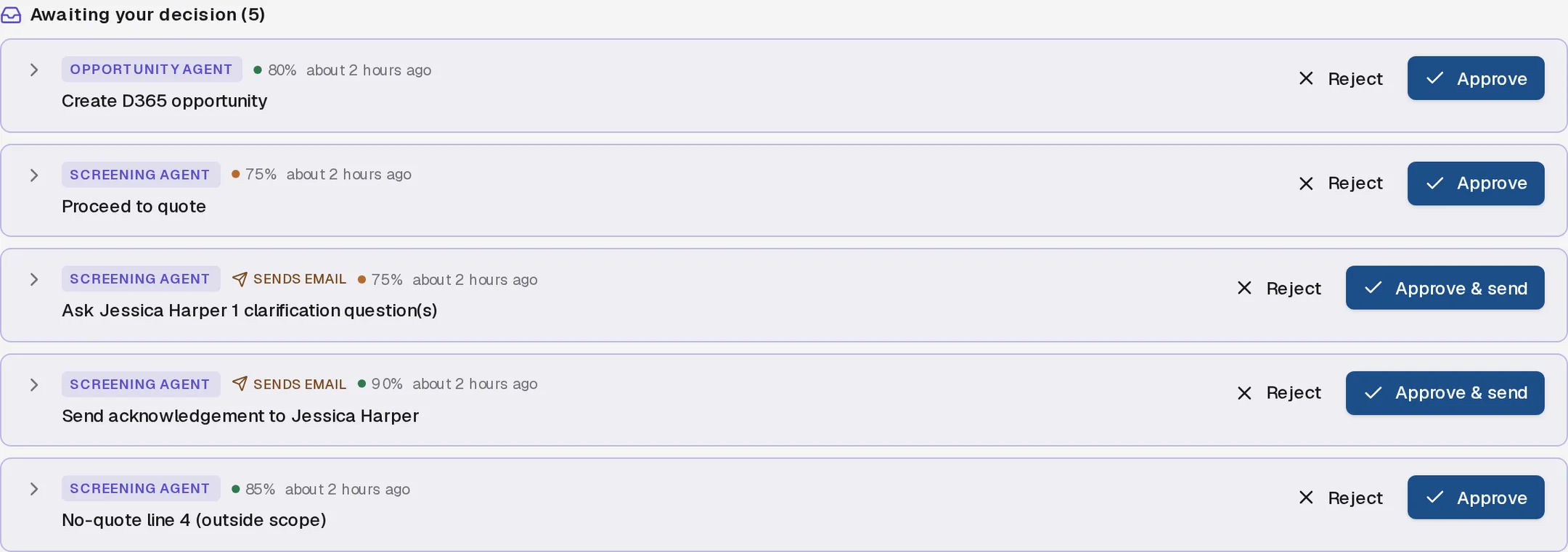
Each card shows:
| Part | Meaning |
|---|---|
| Agent badge | Which agent prepared it, for example Screening Agent |
| Sends email | Approving it sends an email to a client or supplier |
| Confidence | How sure the agent is, as a percentage. Green is 80% or more, amber 60–79%, red below 60% |
| Title | The action, for example "Create D365 opportunity" |
Open a card to see the detail. Select Why? to read the agent's reasoning.
Approve, edit or reject
Review
Open the card and check the content: the email text, the field values, the supplier shortlist or the margins.
Edit if needed
Change anything in the card. The button changes to Approve with edits, and the audit log records that you edited it.
Decide
Select Approve (or Approve & send for emails) to carry out the action. Select Reject to discard it. Quote Hub asks for a reason, which is saved with the proposal.
After approval, Quote Hub carries out the action with the same steps you would use by hand, and records who approved it. If something stops it, for example a missing client contact email, the card shows Failed with the reason.
Proposals are routed to the enquiry owner (or the assigned hub buyer for supplier work), or to everyone in the role if no one is assigned. A proposal can be decided by the person it is assigned to, anyone with the assigned role, a sales lead or an administrator. See Action inbox.
Superseded proposals
When an agent prepares a newer proposal of the same kind for the same enquiry, the older pending one is marked Superseded and leaves your inbox. Re-screening an enquiry replaces all of its undecided screening proposals. You only ever decide the latest version.
Confidence on extracted data
The Intake Agent reads emails and attachments into enquiry fields and lines.
- The enquiry summary on Overview shows an Extracted badge and an overall confidence.
- On Lines & specs, each line shows its confidence. Values the agent was unsure of (below 70%) are highlighted. Points to check are listed under the description.
- When you edit a line, the values you save count as confirmed and the line's warnings clear.
Agent trace
Every agent run is recorded step by step: what it read, which rules it applied, what it concluded and what it proposed. Open the Agent trace tab on an enquiry to see it. See Agent trace.
Autopilot
By default every proposal needs a person. On Administration › Automation & policies, administrators can tick auto-approve for individual internal action types, such as Update enquiry data or Create D365 opportunity. Those proposals are then approved automatically and logged as approved by Autopilot.
Emails always need a person
Action types marked outbound (anything that emails a client or supplier) cannot be set to auto-approve, and Quote Hub never runs them automatically.
Working without AI
Every step has its own buttons and forms, so you can do the work by hand and ignore or reject proposals. The Copilot also follows the same rule: it can suggest a clarification, an enquiry update or a supplier message, and each one comes to you as a proposal.
See Agents for what each agent does and when.