Suppliers
Find a supplier, check its approvals and performance, and add a new supplier.
The Suppliers page lists every supplier with its approved-list status, agreements and delivery performance. Open a supplier to see its contacts, history and recent RFQs.
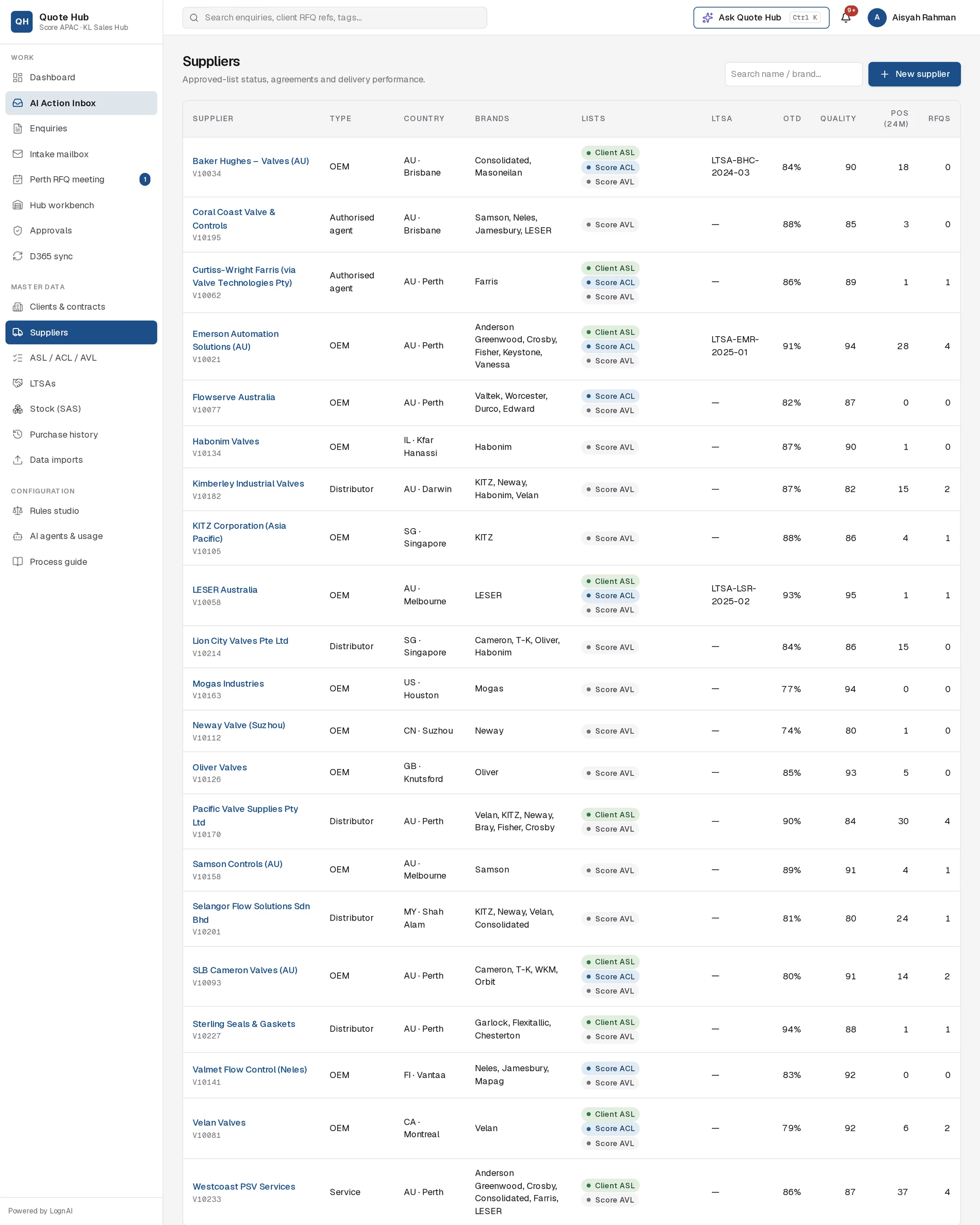
The supplier list
| Column | What it shows |
|---|---|
| Supplier | Name and vendor code. Select the name to open the supplier. |
| Type | OEM, Authorised agent, Distributor, Service or Other |
| Country | Country code and city |
| Brands | Brands the supplier represents |
| Lists | Client ASL, Score ACL and Score AVL pills for every list the supplier is on |
| LTSA | Agreement numbers of the supplier's LTSAs |
| OTD | On-time delivery percentage |
| Quality | Quality score out of 100 |
| POs (24m) | Purchase order lines from the last 24 months |
| RFQs | RFQs sent through Quote Hub |
To search, type in Search name / brand… and press Enter. The search matches any part of the supplier name, vendor code or brand names, and ignores upper and lower case.
Supplier detail
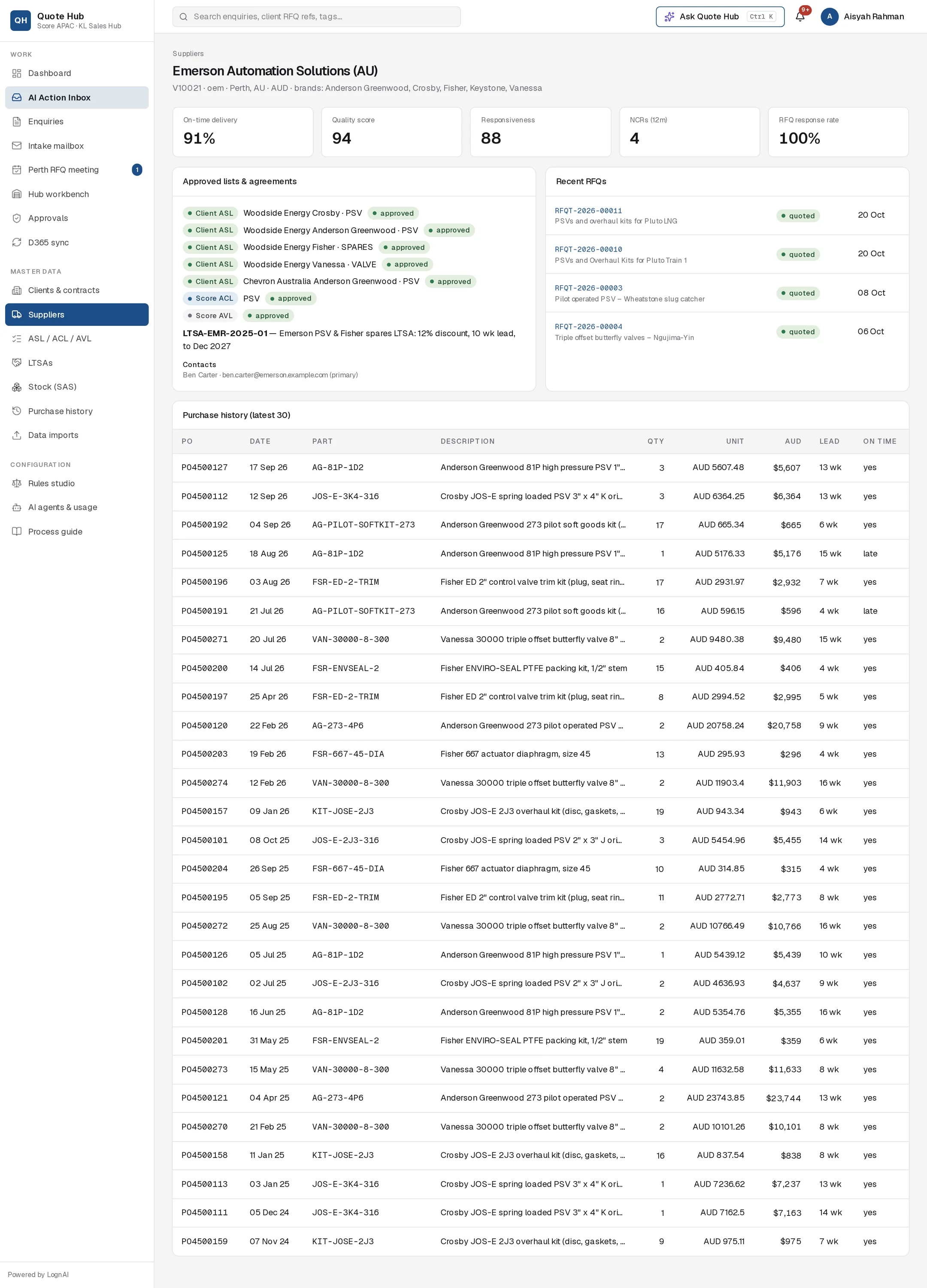
The header shows vendor code, type, location, currency and brands. Below it:
- Performance tiles: On-time delivery, Quality score, Responsiveness, NCRs (12m) and RFQ response rate. The response rate is the share of RFQs sent through Quote Hub that the supplier quoted.
- Approved lists & agreements: every list entry with its client, manufacturer, product type and status (approved, conditional or suspended), followed by the supplier's LTSAs with discount, lead time and end date.
- Contacts: name and email. The primary contact is marked.
- Recent RFQs: the last 20 RFQs with their status and sent date. Select an RFQ number to open the hub request.
- Purchase history (latest 30): PO, date, part, description, quantity, unit price in the PO currency, AUD price, lead time and whether delivery was on time.
Add a supplier
Open the form
Select New supplier on the Suppliers page.
Fill in the details
Enter Vendor code, Name, Type, Country (ISO), City, Currency, Brands (comma separated), Product types (SPARES, PSV, VALVE), Contact name and Contact email. All fields except City and Brands are required.
Choose AVL status
Leave Add to Score AVL (conditional, pending qualification) ticked to add the supplier to the Score AVL with status conditional.
Create
Select Create. The contact becomes the supplier's primary contact.
How supplier data is used
The Sourcing Strategist builds the shortlist from approved lists, LTSAs, purchase history and brand representation, then scores each supplier on list priority, line coverage, performance and history. Performance also counts in the bid check score. See Sourcing and Bid check.
Good to know
- A dash in OTD or Quality means no performance record exists for the supplier yet.
- Only active suppliers are considered for the shortlist.
- To add or update many suppliers at once, use the Suppliers import on Data imports.