Finding your way
The sidebar, search, notifications, the copilot and your user menu.
Every Quote Hub page has the same frame: the sidebar on the left and a top bar with search, the copilot, notifications and your user menu.
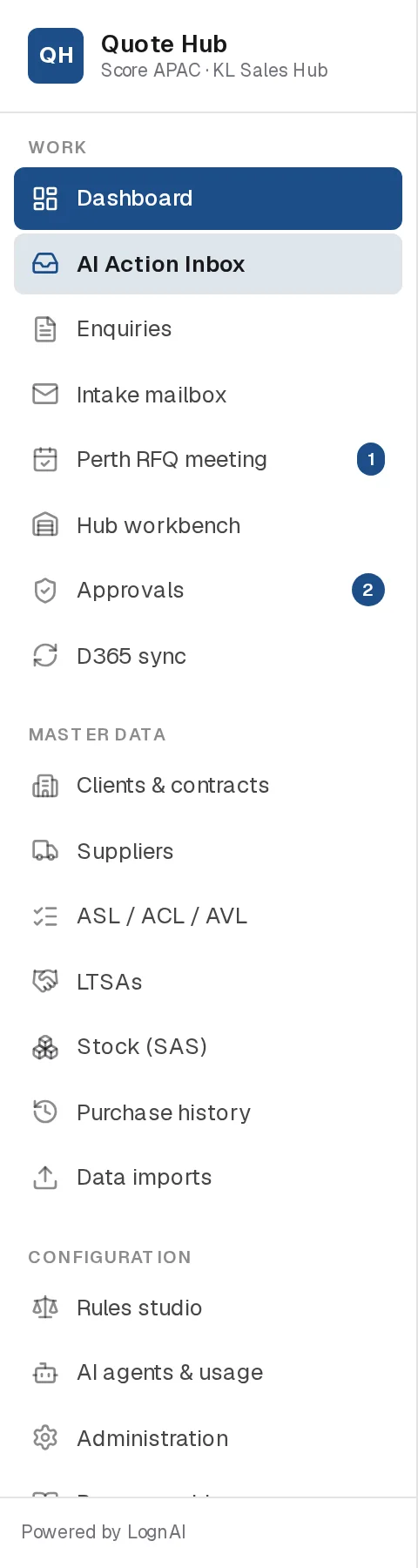
Work
The pages you use every day.
| Item | What it is for |
|---|---|
| Dashboard | Your KPIs, daily briefing and open work. See Dashboard. |
| AI Action Inbox | AI proposals waiting for your decision. Always highlighted. See Action inbox. |
| Enquiries | Every enquiry as a table or a board by stage. See Overview and Enquiry workspace. |
| Intake mailbox | Emails and files picked up from the enquiry mailboxes and the shared folder. See Intake. |
| Perth RFQ meeting | Today's agenda of enquiries tabled for the Perth team. See Perth meeting. |
| Hub workbench | RFQ Upload Tool forms for the KL hub to float to suppliers. See Hub sourcing. |
| Approvals | Technical and commercial approvals. See Approvals. |
| D365 sync | Records sent to the D365 import folder. See D365 sync. |
Master data
Reference data the agents and rules use: Clients & contracts, Suppliers, ASL / ACL / AVL, LTSAs, Stock (SAS), Purchase history and Data imports. See Master data.
Configuration
| Item | What it is for |
|---|---|
| Rules studio | Suitability and scope ground rules. See Rules studio. |
| AI agents & usage | What each agent does, how often it runs and what it costs. See AI agents and usage. |
| Administration | Users, automation and policies, integrations and the audit log. Shown to administrators only. |
| Process guide | The quoting process at a glance, inside Quote Hub. |
Badges
A number next to a sidebar item counts work waiting. Badges refresh every 30 seconds.
| Item | Counts |
|---|---|
| AI Action Inbox | Pending proposals assigned to you or your role. Administrators see all pending proposals. |
| Intake mailbox | Emails not yet processed, or that failed. |
| Perth RFQ meeting | Enquiries on today's agenda without a decision. |
| Hub workbench | Forms sent to the hub where supplier RFQs have not gone out. Hub buyers see only their own. |
| Approvals | Approval steps waiting for your role. Administrators see all. |
Search
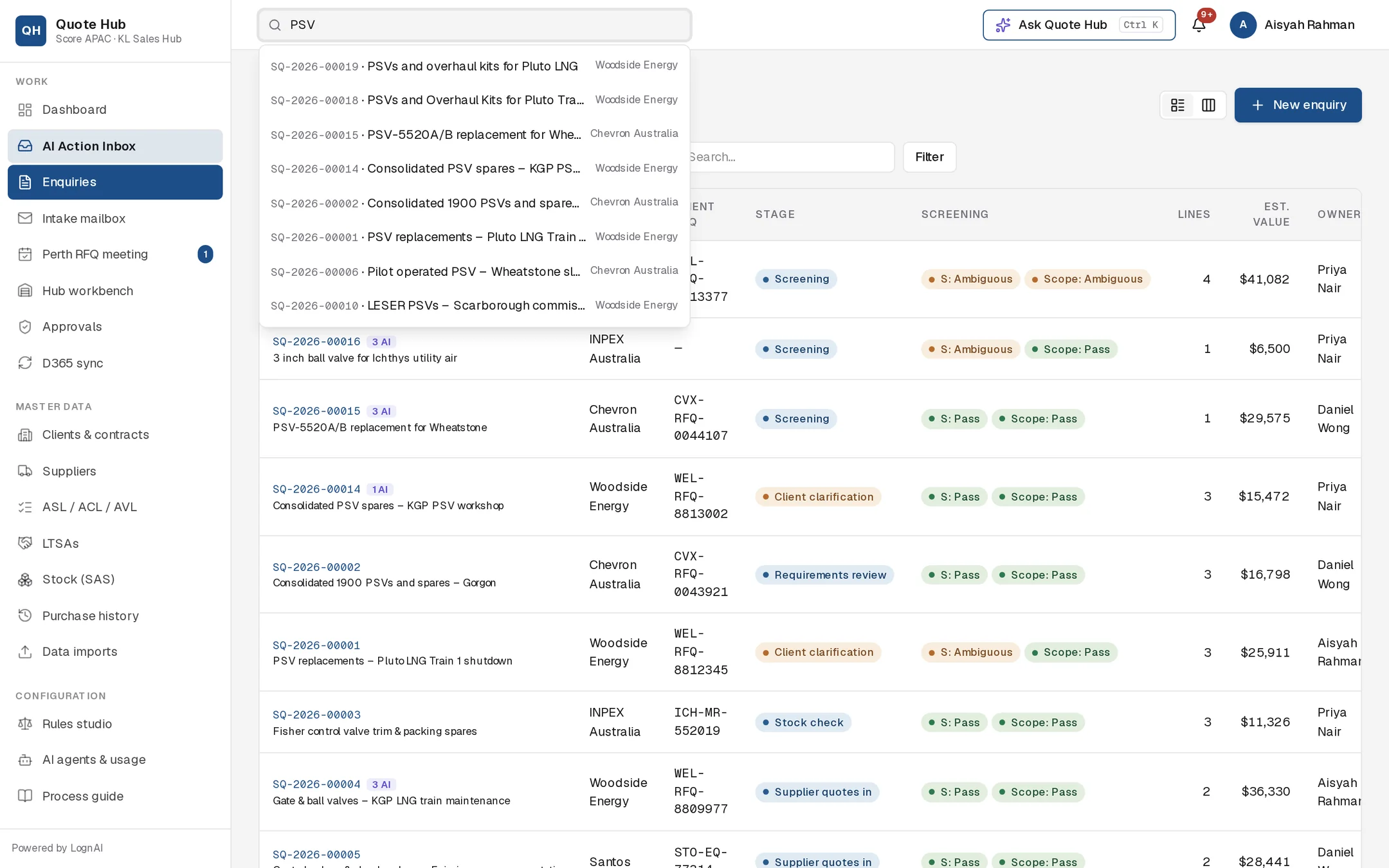
The search box in the top bar finds enquiries by Quote Hub number, title, client RFQ reference, client name, tag number or part number. Type at least two characters. Up to eight matches appear, newest first. Select one to open it.
Notifications
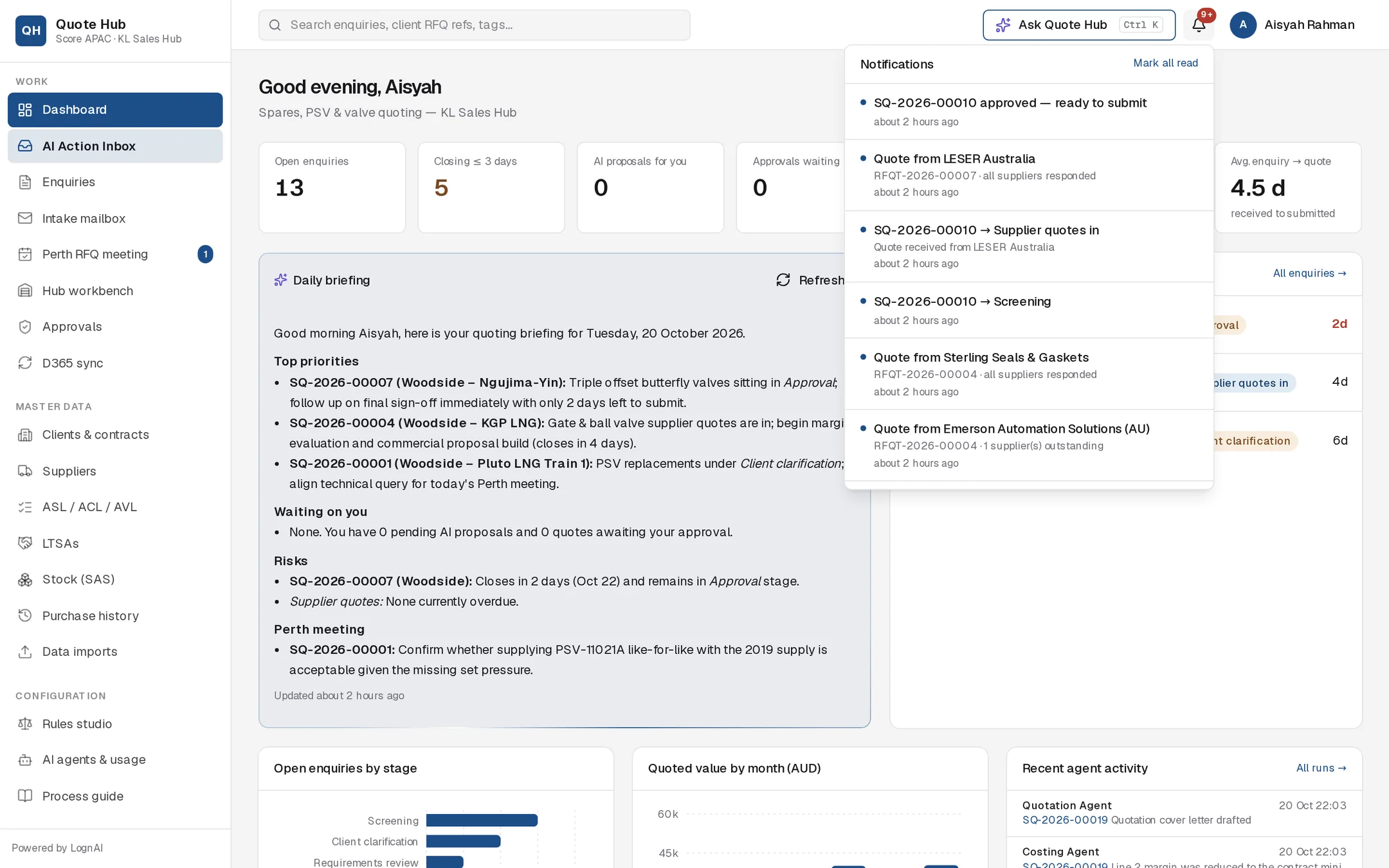
The bell shows a red count of unread notifications. Open it to see your 30 most recent. Select one to go to the enquiry, approval or hub request, or select Mark all read. See Emails and notifications.
Copilot
Select Ask Quote Hub, or press Ctrl K (Cmd K on a Mac), to open the copilot. Ask about an enquiry, stock, suppliers, prices or the pipeline. Anything it suggests doing comes to you as a proposal. Press Esc or Ctrl K again to close it. See Copilot.
User menu
Select your name in the top-right corner to see your email and role, and to sign out.