Enquiry intake
How client enquiries arrive in Quote Hub and become numbered enquiries.
Client enquiries reach Quote Hub from the enquiry mailboxes, the shared enquiry folder, or a sales engineer entering them by hand. Each one becomes an enquiry with lines, client details and attachments, ready for screening.
Where enquiries come from
| Source | What Quote Hub reads |
|---|---|
| APAC Sales Hub enquiries | The Sales Hub enquiry mailbox. |
| Woodside Spares RFQ folder | The Woodside spares RFQ folder in the same mailbox. |
| Shared folder | The Incoming Enquiries folder under Sales Hub in OneDrive. Each file, or each sub-folder of files, is read as one item. |
| Manual entry | An enquiry you create from Enquiries › New enquiry. |
The mailboxes and the shared folder are checked automatically. By default they are checked continuously. An administrator can switch to cut-off times instead, with defaults of 07:30 and 13:00 Kuala Lumpur time. See Automation.
The Intake mailbox
Open Intake mailbox in the sidebar to see everything that has arrived, newest first. The subtitle shows when the mailboxes were last checked.
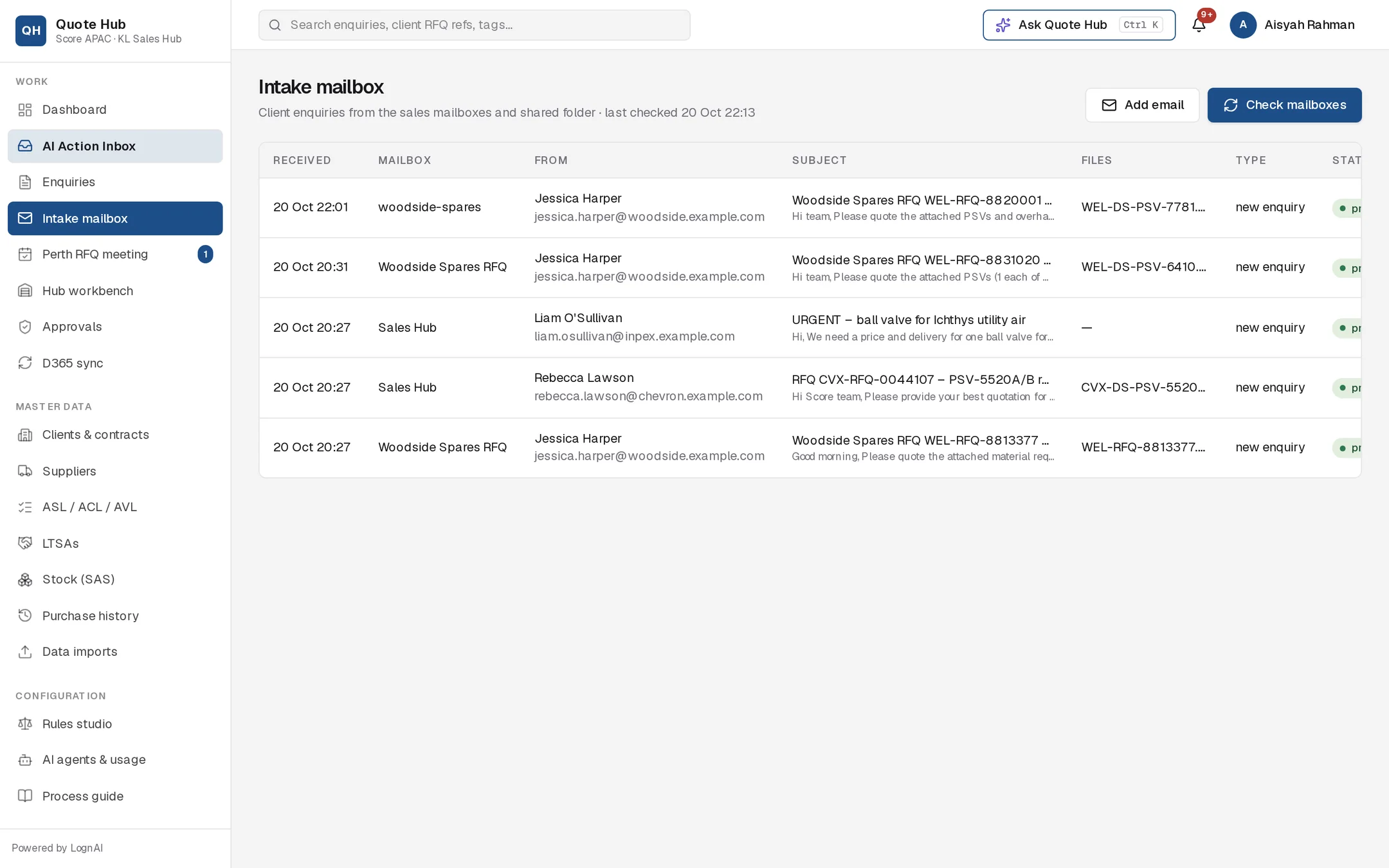
| Column | Meaning |
|---|---|
| Mailbox | Sales Hub, Woodside Spares RFQ or Shared folder. |
| Files | Attachments received with the email. |
| Type | How the Intake Agent classified it: new enquiry, clarification reply, supplier quote or noise. |
| Status | pending, processing, processed, ignored or failed. A failed item shows the error underneath. |
| Enquiry | The enquiry created or updated from the email. |
- Select Check mailboxes to check the mailboxes and shared folder now, without waiting for the next automatic check.
- Select Re-run on a failed, ignored or processed item to read it again. The button is hidden for emails that already created an enquiry. To check one of those again, use Re-screen on the enquiry.
Add an email received elsewhere
If a client sent an enquiry to a personal address or another inbox, add it so it follows the normal intake.
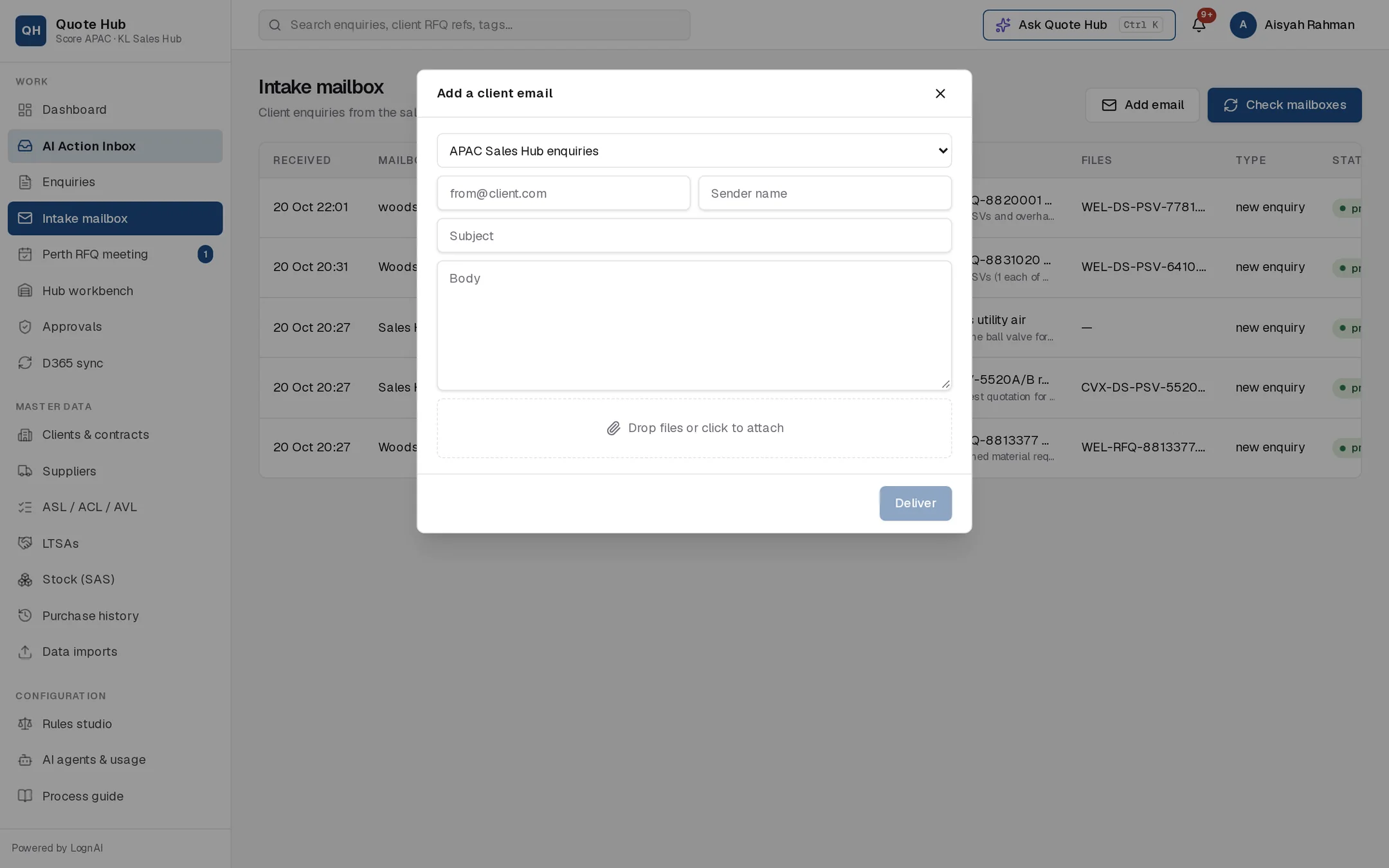
Open the dialog
Select Add email.
Enter the email
Choose the mailbox it belongs to, then enter the sender's email address, sender name, subject and body. Attach the client's files.
Deliver
Select Deliver. The email appears in the list and the Intake Agent reads it straight away.
Create an enquiry manually
Select Enquiries › New enquiry and choose one of two options.
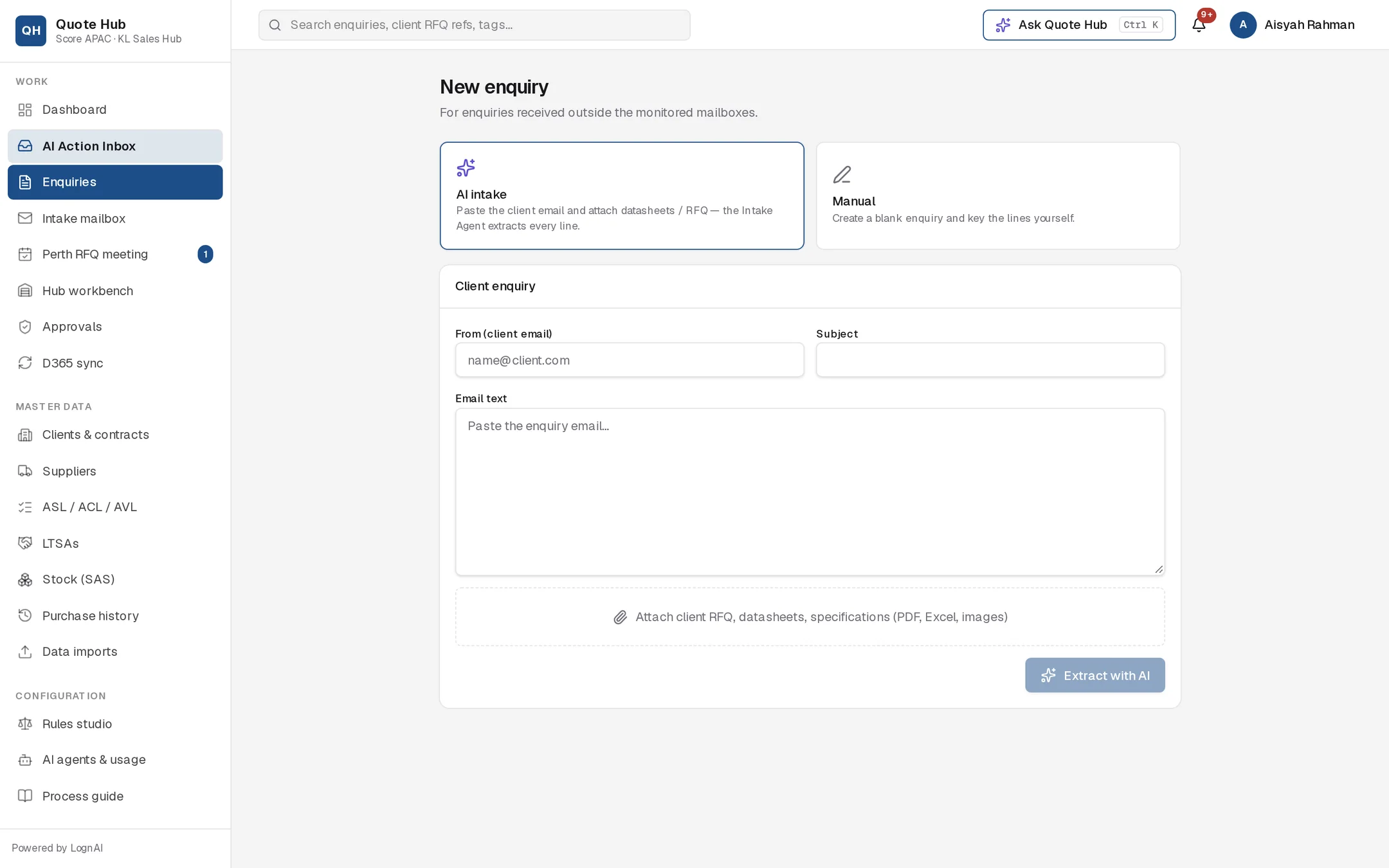
- AI intake: paste the client email into Email text, add the sender and subject, attach the RFQ, datasheets or specifications, then select Extract with AI. The Intake Agent builds the enquiry and opens it.
- Manual: enter a title, client, contact, client RFQ reference and closing date, then select Create enquiry. The enquiry opens on Lines & specs so you can key the lines. Screening does not start on its own. Select Run screening on the next-step bar when the lines are in.
Reads the email body and every attachment and extracts:
- client, contact, site or asset, frame agreement, client RFQ reference and date, closing date, delivery date and location, Incoterms, currency, QRT/CAS level, inspection and documentation requirements
- one line per item, keeping the client's item numbering, with the technical attributes described in Lines and specs
- a short title and summary, and the type of each attached document
Values that are not stated are left blank. Values the agent inferred rather than read are marked with lower confidence. It matches the client by the sender's email domain, then by company name, and assigns the sales engineer who last handled that client, or the one with the fewest open enquiries. Screening starts automatically.
Good to know
- Enquiry numbers run SQ-YYYY-##### and restart each year, for example SQ-2026-00018.
- The same email is never read twice from a mailbox.
- A clarification reply that quotes a Score number or the client's RFQ reference is added to that enquiry's client thread. It does not create a new enquiry.
- A supplier quote sent to the enquiry mailbox is marked processed. The hub buyer attaches it to the supplier RFQ.
- Noise, such as newsletters and auto-replies, is marked ignored.
- If the sender does not match a client, the enquiry is created as Unassigned client. Set the client with Edit details on the Overview tab.